
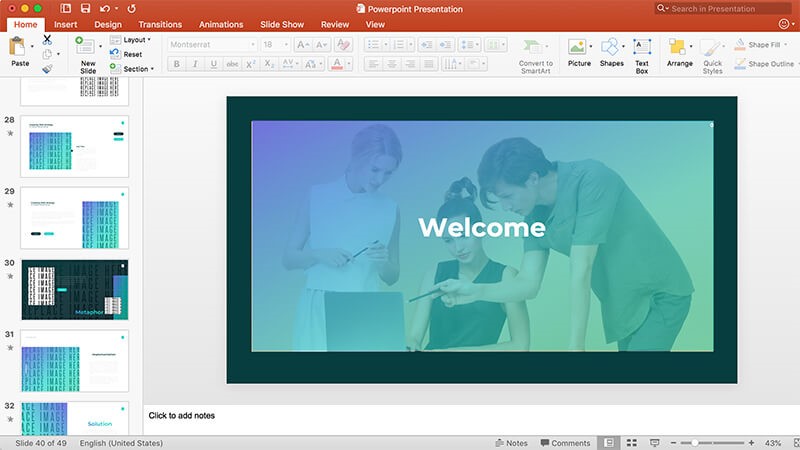
Turning a PowerPoint into something people want to watch has always been a bit of a chore for me, especially when I’m trying to repurpose training or marketing content. That’s why I tried FlexClip AI PPT to Video. After running one of my own decks through it, I can see why it’s getting attention: it takes the bones of a presentation and turns it into a surprisingly polished video without the usual hours of editing.
A Smarter Way I’ve Found to Repurpose Old Slides
What I liked right away is how effortless it is to turn a “finished” deck into something reusable. Instead of letting my PowerPoint slides end up in an archive folder, I uploaded the file and watched FlexClip map each slide into a video scene. In a few minutes, I had a draft that already felt like a real piece of content, not just a screen recording of slides.
That matters because slides on their own can feel a little “empty” when someone views them out of context. Video adds pacing and flow, and it’s much easier for someone to follow along when it feels like a story instead of a handout. (Vectorise)
If you’re anything like me and you’ve got a folder full of past presentations, this is an easy way to squeeze more value out of work you’ve already done.
The Workflow Was Much Faster Than I Expected
Speed is the big win here. FlexClip scanned my slides and automatically built a full video draft: each slide became its own scene, transitions were already in place, and I could layer in voiceover and subtitles without jumping between tools.
Normally, getting from “slides” to “shareable video” would eat up an afternoon (or more) if I’m doing everything manually. With this, I was looking at a usable first version in minutes.
And honestly, that changes how I think about content. When the production part stops being painful, it’s easier to focus on tightening the message and making the result useful.
Easy Enough for Beginners (But Not “Toy” Software)
I’ve used tools that are either super powerful but frustrating, or simple but limiting. FlexClip felt like a good middle ground. I didn’t need a tutorial to get started, but I also didn’t feel boxed in once the first draft was generated.
That matches what a lot of other users seem to say, too. People call out the clean interface and straightforward workflow. (G2) If you’re not a “video editor” by trade, you can still get something that looks professional.
For me, the biggest advantage is the lowered barrier to entry. I didn’t have to open heavy software, mess with timelines, or overthink the technical parts. It’s the kind of tool you can realistically fit into a busy workday.
The AI Features I Actually Ended Up Using
I’m usually skeptical of “AI features” because they can be hit-or-miss. Here, they felt genuinely helpful, especially for getting a clean first pass done fast:
- Automatic scene setup from my slide structure
- AI voiceovers (useful when I didn’t want to record audio)
- Auto subtitles that synced with the narration
- Built-in editing tools so I could tweak timing, visuals, and text without starting over
None of this replaced the “creative” part for me, but simply removed the repetitive busywork. I still had full control over what the video looked and sounded like, but I wasn’t stuck doing everything from scratch.
If you’re an educator, marketer, or business owner who needs to create content consistently, this kind of automation makes it easier to scale without your workflow turning into a full-time editing job.
The Output Looked More “Finished” Than a Basic Slide Conversion
What surprised me was the overall polish. Between templates, transitions, and built-in visual assets, my video didn’t look like a plain deck pasted onto a timeline—it looked like something I’d feel comfortable sharing.
After the AI generated the first version, I just went in and made the kind of edits you’d expect: tightening a few scenes, adjusting visuals, and making sure everything matched the tone I wanted. It’s a good balance of speed and control.
Where I Can See This Being Useful
Once I saw how quickly I could go from deck to video, a bunch of use cases clicked for me:
- Turning training decks into online courses
- Creating marketing or promotional videos
- Building YouTube or social media content
- Producing internal company communications
- Repurposing blog or presentation content into video format
If you create content for a business (or even internally for a team), this makes it much easier to reuse one piece of work across multiple channels without doubling your workload.
What Other Users Seem to Like (And What Matched My Experience)
Reading through reviews, the themes are consistent: people like how simple it is and how much time it saves. Some even call it a “game changer” for producing content quickly. (Trustpilot) That’s basically why I’d use it too, less time editing, more time actually sharing useful content.
Final Verdict
After trying it myself, I’d say FlexClip’s AI PPT-to-Video feature is a strong option if you want video content without the usual friction. It’s quick, it’s approachable, and it turns existing presentations into something that feels built for today’s platforms.
Why I Think It Stands Out:
- It cut down hours of manual editing for me
- I didn’t need video editing experience to get a good result
- It made repurposing my existing content feel effortless
- The final video looked polished without me doing anything complicated
- The AI automation makes it easier to scale video output consistently
If you want to try this in a way that’s quick and low-pressure, here’s the exact approach that worked for me:
- I grabbed a PowerPoint I’d already used before (nothing fancy)
- I uploaded it to FlexClip
- I let the AI generate the first draft, so I had something to work from
- I added voiceover and subtitles (the two things that usually slow me down)
- I made a few quick edits for branding, pacing, and clarity
- Then I exported it and used it wherever I needed it (site, YouTube, socials, etc.)
Bottom line: For me, FlexClip wasn’t just a way to “make a video”—it was a quick way to turn work I’d already done into content I could reuse and share.